Field reports for site supervisors

Photograph each observation and talk it through on iPhone or Android. TaskActionIQ drafts the report and lists the follow-ups as High, Medium and Low actions, even with no signal.

Basic plan
Free, one supervisor
No signal
Keeps capturing
Reports
PDF and Word
No signal09:41
Observation 04 saved on this phone

The whole walkthrough in one window

Pick an observation on the left. Its photos, your voice note and the AI draft open beside it, ready to edit before anything leaves your hands. See the report

Reliable. Rapid.

Every photo and voice note is saved on the phone before anything else happens. Losing signal in a basement or closing the app never costs you an observation.

Only the project name to startClient, location and inspector can wait.
Numbered as you goEach photo keeps the time it was taken.
Originals keptEdits never overwrite the photo you took.

Capture on site. Photos, voice and notes stay with each observation.

Records a voice note per observation

Tap Record and say what you see. The note stays with that observation’s photos.

Observation 04 · Maintenance bay2 notes
0:42

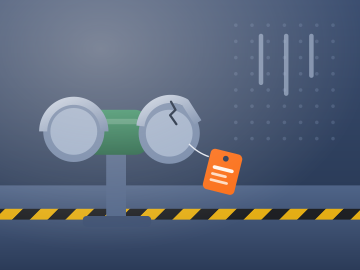
“Guard on the right wheel is cracked and the bracket’s bent.”

0:15

Supplementary: “Lock-out tag is on the isolator.”

Saves every photo offline

Each photo and voice note saves on the phone first and syncs when you reconnect.

  • Saved on this phoneObservation 05, 3 photos and a voice note
  • Waiting for signal7 photos and 2 voice notes queued
  • SyncedPlant room walkthrough, 11 photos

Starts a walkthrough with one name

Only the project name is required. Observations number themselves; photos keep their time.

New walkthrough9 Nov, 08:47
Visit typePre-planningProgressClose-out
Start capturing

Puts every supervisor in one workspace

On Teams, every supervisor’s walkthroughs and open actions sit together, with roles. See the Teams plan

4 members
Site supervisor, Block B3 open actionsMember
Maintenance lead5 open actionsAdmin
Site supervisor, Block A2 open actionsMember
Project manager1 open actionOwner

Reports in PDF and editable Word

Each report opens with the project, client, location, inspector and date, then the numbered observations with their photos. Export the PDF on the phone, even offline.

  • Follow-up only where you confirmed it
  • Finished versions kept beside the draft
  • Shared from the phone or by link
See the actions
TaskActionIQWalkthrough report · Completed

Plant room walkthrough

Client
Facilities team
Location
Building B
Date
9 Nov 2026, 08:47
Inspector
Maintenance lead
Visit type
Progress
Observations
10

Walkthrough of plant room B2, the maintenance bay and the loading dock. Ten observations recorded; three need follow-up before equipment returns to service.

04Cracked wheel guard on bench grinder

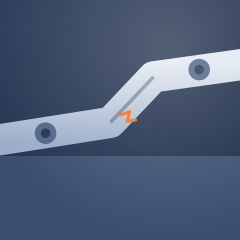
Observed / reported condition and work completedThe guard on the right wheel of the bench grinder in the maintenance bay is cracked and its mounting bracket is bent. The grinder is tagged out.

Recommended follow-upReplace damaged guarding before returning equipment to service.

Photos (4)

Follow-ups as High, Medium and Low actions

Each walkthrough’s follow-ups stay with its project, so a site meeting starts from one list.

ActionsGroup: projectNew action
High priorityOpen and in progressDue this week
Plant room walkthrough3
HighReplace damaged guardingMaintenance bay · Maintenance teamOpenDue today
MediumSupport the cable trayPlant room B2 · Electrical contractorOpenDue 14 Nov
LowClean oil under compressorPlant room B2 · Maintenance teamIn progressDue 18 Nov
Block B fit-out2
HighRefix loose stair guard railLevel 3 stair core · Site supervisorIn progressDue tomorrow
MediumRelease wedged fire doorCorridor 3B · Site supervisorDoneClosed 9 Nov
Warehouse roof repair2
HighSeal split roof hatchRoof access · Roofing contractorOpenDue 12 Nov
LowReplace exit sign lampLoading dock · Electrical contractorOpenDue 21 Nov

AI drafts stay marked until you review them

On Plus and Teams, TaskActionIQ transcribes each voice note and drafts headings, observations and a summary from your words. It never adds a defect, an action or evidence you did not record.

  • An AI draft label on every line it writes
  • Flags wait for your Confirm or Dismiss
  • Completed only after you confirm accuracy
Review · Observation 04AI draft
ObservationAI draft

The right wheel guard of the bench grinder is cracked and its mounting bracket is bent. The grinder has been tagged out.

Recommended follow-upAI draft

Replace damaged guarding before returning equipment to service.

Flagged in photo 2: the left wheel guard may also be loose. Confirm only if you saw it.

ConfirmDismiss

“Guard on the right wheel is cracked and the bracket’s bent. Tagged it out.”

HighReplace damaged guardingSuggested action · Maintenance teamAccept
I confirm this report is accurateMark as completed

Basic is free for one supervisor

Plus adds AI transcription and drafting. Teams puts every supervisor in one workspace.

Basic

Photo and voice walkthroughs for one supervisor.

Free

Start free
  • Unlimited walkthroughs and photos
  • Voice notes on every observation
  • Works offline, syncs later
  • PDF and editable Word reports
  • High, Medium and Low actions

Teams

Observations and actions from every supervisor in one place.

Choose Teams
  • Everything in Plus
  • One workspace for all supervisors
  • Team dashboards
  • Assign actions to members
  • Owner, admin and member roles

Questions before the first walkthrough

Does the app work offline?

Yes. Photos, voice notes, notes and PDF export work offline and sync when you reconnect. AI drafting and sharing links need a connection.

Will the AI add defects to my reports?

No. It drafts only from what you recorded. It may flag something visible in a photo for you to confirm, and its text stays marked until you accept it.

Which phones run the app?

Recent iPhones and Android phones, plus desktop browsers. Install it from the browser to your home screen; no app store needed.

Is the app an inspection checklist?

No. It records what you see and turns it into a report and actions. It does not replace hazard assessments, checklists or job planning.

Who sees my walkthroughs on Teams?

Everyone in the workspace sees its walkthroughs and actions. Owners and admins invite people and set roles.